A faster checkout at your counter: 7 tips for the Sell screen
Seven simple tips for the Sellrika Sell screen: barcode scanning, Pay later, a customer screen, notes on items, quick discounts and receipts.
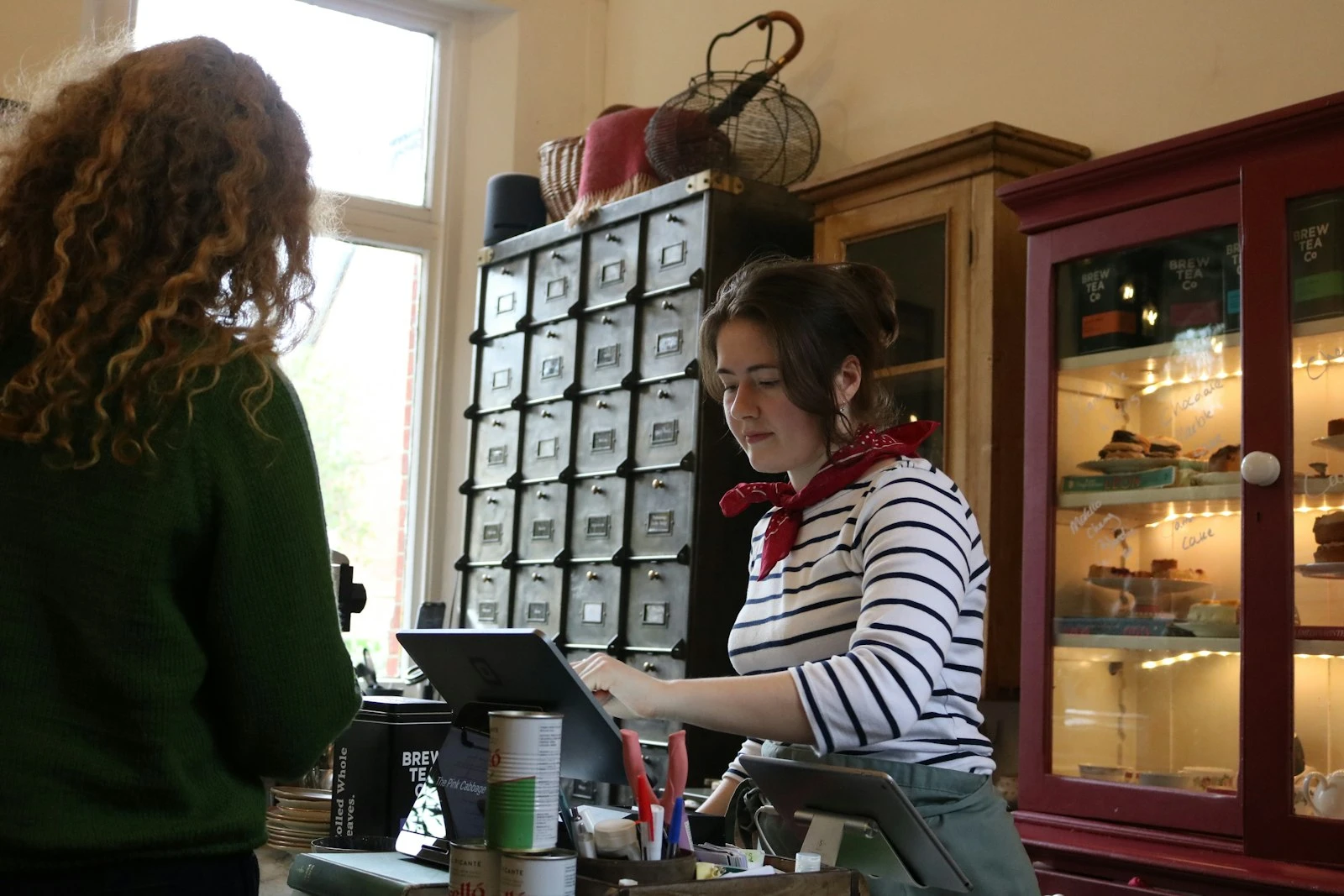
A long line at the counter costs you sales. People leave when they wait too long. The Sell screen in Sellrika is made to be quick. Here are seven tips to make it even faster.
1. Scan, don't search
Plug in a barcode scanner and scan. You do not need to click anywhere first. The product goes straight into the cart.
No scanner? Press the / key to jump to the search box. Then type a part of the name.
2. Use the categories
Tap a category under the search box to see only those products. This helps a lot in a café or a bakery, where staff know the menu by group.
3. Show the cart to your customer
Do you have a second monitor? Tap the monitor button next to the search box. The Customer screen opens and shows each item and the total as you add them.
You can also show a picture for a payment method, like a QR code to pay. The customer sees it when you pick that method. No second monitor? The pay window shows the same picture, so you can turn your tablet to the customer.
4. Add a note to an item
"No onions." "Gift wrap, please." Press the speech-bubble button on a line in the cart and type the note. It is saved with the order and it prints on the receipt.
5. Give a discount in one tap
Tap Discount in the cart. Then tap 5%, 10%, 15% or 20%. You can also type a fixed amount, or a discount code.
6. Let regulars pay later
Some customers run a tab, or a table pays at the end. Tap Charge and then Pay later. The order is saved as Unpaid.
Later, open it on the Orders page. You can add items, remove items and record the payment there. The items leave your stock at once, so your count stays right.
7. Print straight to a receipt printer
After a sale, tap Print. On Android, you can print straight to a small thermal printer with the RawBT app. Turn it on in your user menu under Settings › Printing, and pick 58 mm or 80 mm paper.
Small things that save time
- The cart is kept. Open another page or reload, and the cart is still there. The customer and the discount stay too.
- Change is worked out for you. For cash, tap Exact or a quick amount. The app shows the change to give back.
- Prices are checked again. When you confirm, the server checks prices and stock one more time. Nothing wrong gets charged.
- Every role can sell. Cashiers, managers and admins can all use the Sell screen.
Try it
The Sell screen works in the browser on a computer, a tablet or a phone. Start your 30 free days at sellrika.com and make a test sale today.
Photo by Caden Norcott on Unsplash.